
Essential Networking Tools Every IT Professional Should Know
Every IT professional eventually builds a personal toolkit — a set of go-to tools they reach for when something breaks at 2 a.m. or when a stakeholder asks why the VoIP calls are choppy. The difference between a slow diagnosis and a fast one often comes down to whether you have the right tool ready and know when to use it.
This guide covers the essential categories of networking tools, what problems each one solves, and how they fit into real-world IT workflows. It's designed as a reference you can return to, not a one-time read.
Why the Right Networking Tools Matter
The right networking tools reduce mean time to resolution (MTTR), prevent minor issues from becoming outages, and give IT teams visibility into infrastructure they'd otherwise be flying blind on. Without them, troubleshooting becomes guesswork.
Network environments have grown significantly more complex over the past decade. A mid-sized organization might run a mix of on-premises switches, cloud workloads, remote endpoints, and SaaS applications — all of which need to communicate reliably. When something breaks, the blast radius can be wide.
Good tooling doesn't just help you fix problems faster. It helps you spot degradation before users notice it, document your infrastructure accurately, and make confident decisions about capacity and architecture. The categories below cover the full diagnostic lifecycle, from high-level monitoring down to individual packets.
Network Monitoring Tools
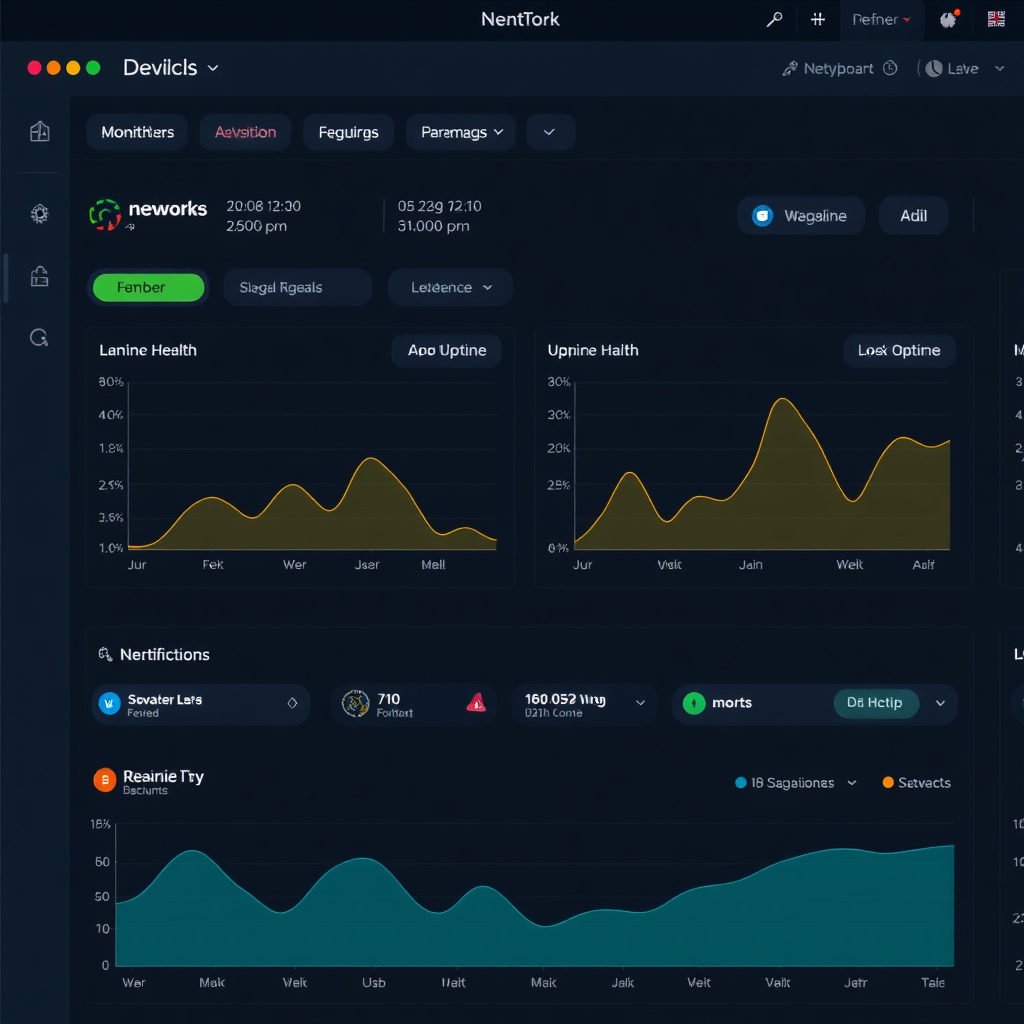
Network monitoring tools track the uptime, performance, and health of devices across your infrastructure in real time, alerting you when something falls outside normal thresholds. They're the foundation of proactive IT operations.
The most widely used open-source option in this space is Nagios, which has been a staple in enterprise environments for over two decades. It monitors hosts and services, sends alerts on failures, and integrates with a large ecosystem of plugins. Zabbix and Prometheus are strong modern alternatives, with Prometheus particularly popular in containerized and cloud-native environments due to its pull-based metrics model and tight integration with Grafana dashboards.
On the commercial side, tools like SolarWinds Network Performance Monitor and PRTG Network Monitor offer polished interfaces and built-in support for SNMP (Simple Network Management Protocol) — the protocol that most managed network devices use to expose performance data. SNMP traps and polling remain the backbone of device-level monitoring for routers, switches, and firewalls.
For smaller teams, even a lightweight tool like Uptime Kuma (self-hosted, open-source) can cover the basics: endpoint availability, response time, and alerting via Slack or email. The right choice depends on your environment size and how much you want to manage versus pay for.
Packet Analysis and Traffic Inspection
Packet analysis means capturing raw network traffic and inspecting it at the protocol level — it's the most granular form of network troubleshooting available. When monitoring tools tell you something is wrong but not why, packet capture tells you exactly what's happening on the wire.
Wireshark is the industry standard here. It's free, open-source, and runs on Windows, macOS, and Linux. With Wireshark, you can capture live traffic on an interface or open a previously saved .pcap file, then filter and dissect packets down to individual fields. It supports hundreds of protocols out of the box, which makes it useful for diagnosing everything from a misbehaving DNS resolver to a TLS handshake failure.
The learning curve is real. Wireshark surfaces a lot of data, and knowing which filters to apply — tcp.flags.syn == 1 to find connection attempts, or http.response.code == 500 to catch server errors — takes practice. But for any IT professional who deals with application-layer issues or intermittent connectivity problems, it's worth the investment.
For server-side or headless environments, tcpdump is the CLI equivalent. It captures packets to a file that you can later open in Wireshark, which is a common workflow when you need to capture traffic on a remote Linux host without a GUI.
Network Scanning and Discovery Tools
Network scanning tools map your network topology, identify connected devices, and reveal open ports and running services. They're essential for asset inventory, security auditing, and understanding what's actually on your network.
Nmap (Network Mapper) is the most widely used tool in this category. A basic nmap -sn 192.168.1.0/24 sweep will show you every live host on a subnet. Add -sV and you get service version detection; add -O for OS fingerprinting. Nmap's scripting engine (NSE) extends it further, enabling checks for specific vulnerabilities or misconfigurations.
One thing to be clear about: Nmap is a legitimate network administration tool, but scanning networks you don't own or have explicit permission to scan is illegal in most jurisdictions. Within your own infrastructure, it's invaluable for keeping an accurate picture of what's running and where.
For ongoing discovery rather than point-in-time scans, tools like Lansweeper or Netdisco maintain a continuously updated inventory of network devices, pulling data via SNMP and other protocols. These are particularly useful in larger environments where manual scanning doesn't scale.
Command-Line Essentials
Built-in CLI tools remain indispensable for quick, first-response diagnostics — they're available on virtually every operating system with no installation required. Experienced IT professionals use them constantly, often before reaching for anything more sophisticated.
Here's a quick reference for the ones you'll use most:
- ping — Tests basic reachability and round-trip latency to a host. The first thing most engineers run when something "can't connect."
- traceroute / tracert — Shows the hop-by-hop path packets take to a destination, which helps isolate where latency or packet loss is occurring.
- ipconfig / ifconfig / ip — Displays and configures local network interface settings.
ip addris the modern Linux standard;ipconfig /allis the Windows equivalent. - netstat / ss — Lists active connections, listening ports, and socket states. Useful for confirming a service is actually listening where you expect it to be.
ssis the faster, more modern replacement on Linux. - nslookup / dig — Queries DNS servers directly.
diggives more detailed output and is preferred for DNS troubleshooting on Linux/macOS. - arp — Shows the ARP cache, mapping IP addresses to MAC addresses. Helpful for diagnosing Layer 2 issues or IP conflicts.
These tools don't replace dedicated monitoring or analysis platforms, but they're fast, always available, and often sufficient to confirm or rule out the most common failure modes in under a minute.
Bandwidth and Performance Testing Tools
Bandwidth and performance testing tools measure actual throughput between two points, helping you identify bottlenecks, validate link capacity, and test quality of service configurations. They answer the question: "Is the network actually delivering what it should?"
iPerf3 is the standard open-source tool for this. You run it in server mode on one host and client mode on another, and it measures TCP or UDP throughput between them. It's lightweight, cross-platform, and gives you detailed output including bandwidth, jitter, and packet loss — all critical metrics for evaluating link quality before and after infrastructure changes.
For internet-facing performance, Speedtest CLI (from Ookla) or fast.com (Netflix's tool) give you a quick read on WAN throughput. These are less precise than iPerf3 for internal testing but useful for confirming ISP-side issues.
MTR (Matt's Traceroute) combines the functionality of ping and traceroute into a continuous, real-time view of path performance. It's particularly good at catching intermittent packet loss on specific hops that a single traceroute might miss.
Choosing the Right Tool for the Job
No single tool covers every scenario — the right choice depends on what you're trying to diagnose, the scale of your environment, and whether you need a quick answer or a detailed investigation.
A useful mental model: think in layers. Start with monitoring to know something is wrong, use CLI tools for fast first-pass diagnosis, reach for Nmap when you need to understand what's on the network, and pull out Wireshark when you need to understand what the network is actually saying.
For small teams (under 50 devices), a combination of free tools — Zabbix or Uptime Kuma for monitoring, Nmap for discovery, Wireshark for packet analysis, and iPerf3 for performance testing — covers most scenarios without licensing costs.
For larger or more complex environments, commercial platforms like PRTG, SolarWinds, or Datadog offer centralized visibility, better alerting workflows, and support for hybrid and cloud infrastructure. The trade-off is cost and the time required to configure them properly.
In cloud environments (AWS, Azure, GCP), native tools like VPC Flow Logs, Azure Network Watcher, and GCP's Network Intelligence Center fill the monitoring and troubleshooting role that on-prem tools handle locally. These integrate with cloud-native alerting and logging pipelines, which is often more practical than trying to run traditional network tools in a cloud context.
One practical habit worth building: review your toolset at least once a year. Tools evolve, environments change, and the tool that served you well three years ago may have been superseded by something better maintained or better suited to where your infrastructure has moved.
Frequently Asked Questions
What is the best free network monitoring tool for small IT teams?
Zabbix and Uptime Kuma are both strong free options for small teams. Zabbix offers enterprise-grade features including SNMP support and detailed dashboards, while Uptime Kuma is simpler to set up and ideal for basic availability monitoring with clean alerting integrations.
What is the difference between Nmap and Wireshark?
Nmap is a network scanning tool — it actively probes hosts to discover what's on the network, which ports are open, and what services are running. Wireshark is a packet analyzer — it passively captures and inspects traffic flowing through a network interface. They solve different problems: Nmap maps the network; Wireshark examines what the network is doing.
Do IT professionals still use command-line networking tools?
Yes, consistently. Tools like ping, traceroute, and netstat are available on every platform without installation, run instantly, and answer the most common diagnostic questions in seconds. GUI tools are more powerful for complex analysis, but CLI tools remain the fastest first step in any troubleshooting workflow.
What tools help with network troubleshooting in cloud environments?
Cloud providers offer native tools that are often the most practical starting point: AWS VPC Flow Logs and Reachability Analyzer, Azure Network Watcher, and GCP Network Intelligence Center. For cross-cloud or hybrid visibility, platforms like Datadog, Dynatrace, or Kentik provide unified network observability across on-prem and cloud infrastructure.
How often should IT teams audit their networking toolset?
At minimum, once a year — ideally aligned with your infrastructure review cycle. A good trigger is any significant change to your environment: migrating workloads to the cloud, adding a new site, or onboarding a new team. Tools that made sense for a 50-device on-prem network may not be the right fit for a 500-device hybrid environment.